Realsoft Graphics Oy |
Animation Settings
|
|
|---|---|---|
 |
Windows | 
|
Realsoft Graphics Oy |
Animation Settings
|
|
|---|---|---|
|
|
Windows |
|
The animation settings window is available as a 'docked' interface item below the select window and in the Windows pull down menu - the latter opens a floating window containing the animation controls.
|
The following animation options are available:
|
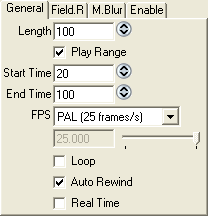 |
Shift latter field up: By default, the lines of the second field (which comes later in time) of a frame are computed below the lines of the first field. If this option is checked, it inverts the order.
Interlace latter field above: By default, the lines of the second field are placed under the corresponding lines of the first field, when fields are combined into a single frame by interlacing them. The frame lines will then be as follows: line1 of field1, line1 of field2, line2 of field1, line2 of field2, etc. This option starts interlacing from the latter field: line1 of field2, line1 of field1, line2 of field2, line2 of field1, etc. This is known as starting with the "even" field (by default) or starting with the "odd" field. This setting is dependent on the output device you are using.
Motion Blur: Turns motion blur on. Every image of the animation (field or frame) will be assembled from the given amount of sub images distributed evenly between the fields/frames. This will make motions appear smoother.
Samples: The amount of sub images for motion blur. The higher the amount, the better the quality, but rendering time increases respectively
Loop: If activated, animation playback rewinds and restarts automatically. This can be useful when previewing cyclic animations. Note that when using File Renderer, this option is ignored
Real Time: If activated, animation playback speed is determined by the FPS (Frames Per Second) field. The system either skips frames, or delays rendering to synchronize the play back speed to the given FPS value. Note that simulations may not work correctly with this option.
Auto Rewind: If activated, animation playback rewinds automatically at the end. When converting simulations to keyframe animations, auto rewinding can be turned off:
Turn auto rewind off
Set animation recording on
Play the simulation
After playback, select the root level and apply Copy tool to it
Rewind the animation
Delete the restored simulation hierarchy and paste the keyframe animation to replace the simulation.
Turn off Simulation for all simulated scene parts. In the choreography editor, remove all unnecessary animated attributes (velocity, spin etc). Apply the Simplify curve tool to the remaining keyframe curves as many times as necessary.
Turn auto rewind on again
Enable Simulations: If set, physical simulations (gravity, collisions etc.) are computed during playback.
Animate Materials: If set, material attribute changes can be keyframed by changing their value animation recording on. The option also controls if already keyframed material changes will be assigned during the playback.
Animate Image Effects: If set, image effect attribute changes can be keyframed by changing their value animation recording on. The option also controls if already keyframed changes will be assigned during the playback.
Animate Particle Effects: If set, particle effect attribute changes can be keyframed by changing their value animation recording on. The option also controls if already keyframed changes will be assigned during the playback.
Animate Images: If set, image attribute changes can be keyframed by changing their value animation recording on. The option also controls if already keyframed changes will be assigned during the playback.
Play Range: If set, the playback steps trough the given frame sub interval instead of the whole animation
Start: The beginning of the 'Play Range' interval
End: The end of the 'Play Range' interval
FPS: Defines how many frames one second of animation contains. The common standards are available as presets.
|
|
 |
|
| Advanced Selection Window |  |
Animation Window |


