Realsoft Graphics Oy |
View Control Bar
|
|
|---|---|---|
 |
Windows | 
|
Realsoft Graphics Oy |
View Control Bar
|
|
|---|---|---|
|
|
Windows |
|
The View Control Bar is docked to the right side of the view window in the default configuration. You can open and close it from the 'View/ViewControls' pull down menu or using the F5 hotkey. If the contents of the view control bar do not fit inside the visible area, you can scroll it by dragging it with the right mouse button 'Ctrl' key held down, or with the middle mouse button.
You can open a popup menu from the left border of the view control bar. With the menu, you can turn icon labels on and off, and control the visibility of the view control groups.
Show labels: Text labels under icons on/off.
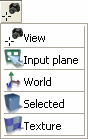
Show Target Group: The 'Target' group has only one selector gadget, which defines what the controls in the next 'Camera' group modify.
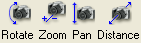
Show Camera Group: This group contains the four controls for rotating, zooming, changing the distance and panning. By default, the target is the view's camera.
Show Interactor Group: The 'interactor' group contains four tools which need mouse click input on the view window. The tools control the aimpoint and the input plane.
Show Orientation Group: This group contains several tools for switching the orientation of various view items. For example 'Reset View' button is located here.
Show Canvas Group: The Canvas group contains miscellaneous view controls. OpenGL, GDI drawing and Ray Trace buttons are located here as well.
The target selector gadget selects the modify target for the Camera group controls below the selector gadget. The following targets are available:
|
 |
The Camera group contains four icons which control the orientation and position of the selected target. Use the icons by pressing the left mouse button down on top of an icon and moving the mouse LMB held down. The icons are (in up to down or left to right order):
|
 |
|
The common nominator of the tools in the Interactor group is that after a tool has been selected, the program expects some mouse clicks (or LMB dragging) on the view window. The tools are: |
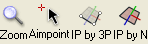 |
Zoom:This is a combined pan and zoom tool. To use it: Activate the tool. Then LMB drag a rectangle on a view window. Note how the dragged rectangle has automatically the proportions of the view window. After left-to-right dragging, the defined rectangle area is magnified to fill the entire view. Reversed dragging from right to left will shrink the current view area to fit the defined rectangle.
Aimpoint: Sets the center point of the view. The new aimpoint position can be defined with a left mouse button click, but also snapping operations can be applied. Use this tool to center the view exactly to the desired point.
IP by 3P: Reads three points and fits the input plane to match the defined plane. The line between the two first points will become the input plane's x axis. For example, you can fit the input plane to any triangle or rectangle by applying this tool: just activate the tool and then LMB drag three corner points with the depth modifier key ',' (comma) held down.
IP by N: Fits the input plane to surface tangent. Activate the tool and LMB click over a surface. You may also LMB drag (preferably grid drawing on) to see how the input plane rotates; releasing the mouse button sets the input plane.
|
The Orientation group contains tools which set predefined orientations for various view window related items. Most of these tool icons have also a side menu which opens with a LMB click. The side menus contain some additional variations of the tools. |
 |
Front: This tool puts the view camera to the front view orientation. The camera will look against z axis (heading 180 degrees, pitching zero). The camera is rotated to the front view about its aimpoint. Also the input plane is rotated so that its normal matches the z axis. Shift clicking the icon gives the opposite view (the back view).
The side menu has two additional versions: 'View' and 'Input Plane'. These tools rotate the view camera or the input plane only. Note, however, that all the three versions perform the same task when the camera and the input plane are locked together.
Side: The side view tool. Side view is the view from the left side of the object (along positive x axis). The side menu is similar to the front view above. Shift clicking the icon gives the opposite view (the right side view).
Top: The top view tool. View camera and input plane are rotated so that the camera looks down against y axis. See the front view tool above for the side menu explanations. Shift clicking the icon gives the opposite view (the bottom view).
Reset: Resets the view back to the 'Native state' that has been stored into it. This usually changes camera and input plane positions and orientation, as well as the zoom scale. The side menu has three entries:
View to default front view: Total view camera reset. The native orientation may get corrupt, or otherwise to a badly defined state. This menu offers an easy way to put it back in order. Aimpoint and grid origin are set to absolute space origin, the camera takes a front view and the zoom scale is reset to the default value 1.0. The initialized values define the new native state of the view.
Reset world: It is possible to define an additional global transformation for the whole scene hierarchy. This so called world transformation is useful when when the world coordinates must be aligned to a part of the scene hierarchy. For example, in a landscape model, the original world coordinates perhaps match the north-south and east-west directions. A building on the landscape seldom matches the same directions. When editing such an irregularly oriented building, it is helpful to set the world coordinates to match the walls. Numerical input for modeling tools becomes easy to interpret etc.
Set native orientation for the view: Records the current state of the view window to be its native state. Next time the reset button is hit, the view returns back to the same state.
Fit: The autofocus tool. The view camera is aimed at the center of the selected objects and zoomed/moved so that the selected objects fill about 75% of the view window. Also the clipping range is adjusted so that all selected objects become visible. Shift-clicking the tool focuses on the selected edit handles, when the selected objects are set to editing state.
Fetch: Fetches the view camera orientation from the selected object. The view will be moved to its position and rotated to match its object space. For example, you can take the view from a camera object or from a spot light this way. The side menu is the following:
View to object: Copies view orientation to selected objects. Usually this tool is used for recording a view to a camera object, but you can also set spot light orientation this way, for example.
Object to input plane: Aligns the input plane to the selected object. Also the view camera follows if it is locked to input plane. It is easier to modify the object when mouse coordinates (and grid orientation) follow the object's orientation.
Object to world: Aligns the world coordinate directions with the object space directions of the selected object.
Sync IP: Rotates the view camera so that it is orthogonal to the input plane. This tool may be useful when using a disconnected camera-input plane system. The attached menu is the following:
View orientation to input plane: Same as above, but this time input plane is rotated, not the view camera.
Input plane orientation to world: Aligns the world coordinates with the input plane. There are many tools which align the input plane to objects, surface tangent etc, which helps in accurate modeling. If usable reference coordinates are also needed and the input plane does not follow world's coordinate directions, you may have to match the world temporarily with the input plane.
|
Persp: Sets perspective projection for the view on/off. The parallel camera projection is often more suitable for accurate modeling purposes. |
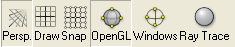 |
Draw: Enables and disables snap grid drawing. A grid must be selected before it can be drawn.
Snap: Enables and disables grid snapping. A grid must be also assigned for the view, otherwise snapping does not work. You can assign the grid by drag and dropping it from the select window into the view window, or using the view property window.
OpenGL: Activates real time drawing via the OpenGL interface. By default, it renders shaded surfaces, but you can change the options from the view property window. OpenGL is a faster alternative than Windows GDI drawing if a modern graphics accelerator is available.
Windows: Selects Windows GDI drawing which is always in wireframe mode. GDI drawing is not hardware dependent and a safe alternative if OpenGL driver compatibility problems appear.
Ray Trace: Ray trace renders the view window.
|
|
 |
|
| View |  |
View Properties |


